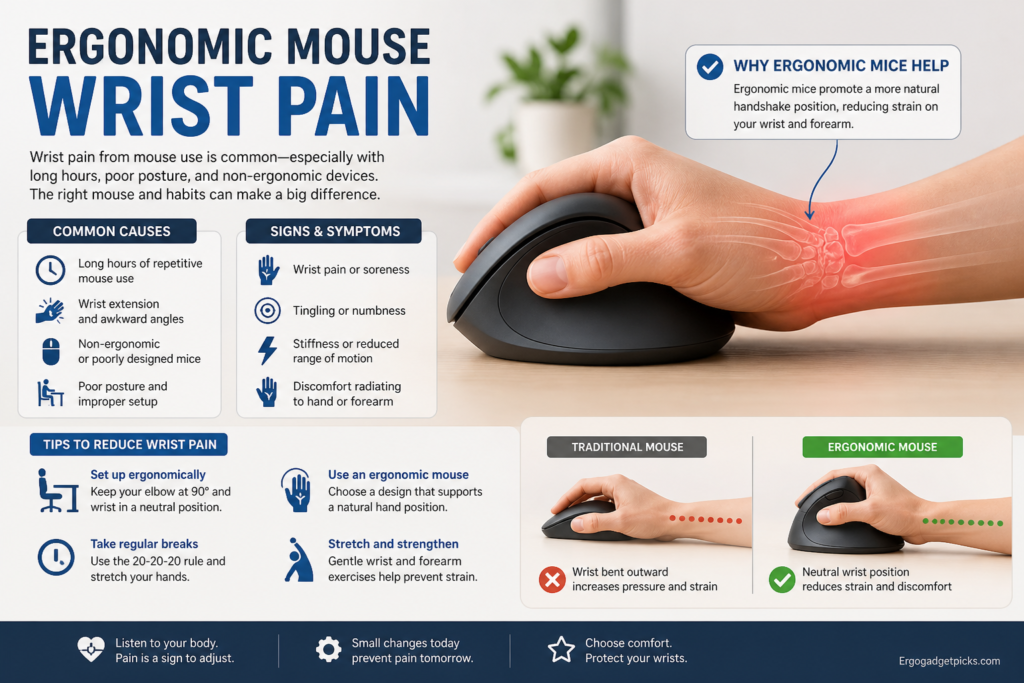
If you’ve ended a workday with a dull ache running from your palm up through your forearm, or woken up with that unmistakable tingle in your thumb and first two fingers, you already know something has to change. This ergonomic mouse wrist pain guide exists because the traditional flat mouse you’ve used since middle school is a primary driver of office-related musculoskeletal injury and the fix is rarely as simple as “buy a Logitech vertical and call it done.
This guide walks you through what’s actually happening to your hand when you mouse, how to diagnose which type of pain you’re dealing with, which ergonomic mouse design matches your specific situation, what to expect during the transition period, and how to combine the mouse with the rest of your workstation so the change actually sticks. It is written for someone who wants to solve this problem once and not have to come back to it.
Why Your Wrist Hurts: The Biomechanics of Mouse Use and Wrist Pain
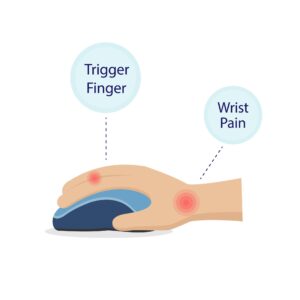
A traditional flat mouse forces your forearm into a position called full pronation — your palm faces the desk, which requires the two long bones of your forearm (the radius and the ulna) to cross over each other. Hold your hand flat on a table for thirty seconds and you can feel the tension this creates in the muscles just below your elbow. Now imagine holding that position for eight hours a day, five days a week, for years.
While your forearm is pronated, three other things are usually going wrong at the same time:
Wrist extension: Most people rest the heel of their hand on the desk and angle their fingers up to reach the mouse buttons. That upward bend at the wrist compresses the carpal tunnel — the narrow passageway in your wrist where the median nerve and nine tendons share space. The more extended the wrist, the more pressure on the nerve.
Ulnar deviation: When your mouse is positioned to the right of a full-size keyboard with a number pad, your hand has to tilt outward (toward the pinky) to reach it. This sideways bend, called ulnar deviation, stresses the tendons on the thumb side of your wrist and is a primary cause of De Quervain’s tendinitis.
Static grip tension: Even when you’re not actively clicking or moving the mouse, your fingers stay slightly curled and your grip stays tense. Muscles that hold any contraction for hours without rest become fatigued, then inflamed, then chronically painful.
These four positional faults pronation, extension, ulnar deviation, and static grip compound. Each one alone is tolerable. Layered on top of each other for thousands of hours, they produce the conditions collectively known as mouse-related repetitive strain injury, or mouse arm. Any useful ergonomic mouse wrist pain guide starts here, because you cannot choose the right tool without understanding the mechanism.
The job of an ergonomic mouse is to eliminate or reduce as many of these four faults as possible. Different ergonomic designs prioritize different faults, which is why there is no single best ergonomic mouse — the best mouse depends on which fault is hurting you the most.
The Four Mouse-Related Injuries You Need to Know
Before you can choose the right intervention, you need to know what you’re trying to fix. An ergonomic mouse wrist pain guide is only as useful as its diagnosis as the four most common mouse-related injuries each have distinct symptom patterns.
Carpal Tunnel Syndrome
The most well-known of the group. The median nerve runs through a tunnel of bones and ligaments at the base of your palm; when that tunnel narrows under pressure, the nerve gets compressed. Symptoms include tingling, numbness, or burning in the thumb, index finger, middle finger, and the thumb-side half of the ring finger. Pain often wakes people up at night. The little finger is almost never affected — that’s a different nerve.
Carpal tunnel is driven primarily by sustained wrist extension and pressure on the underside of the wrist. The mouse interventions that help most are those that keep the wrist in a neutral, straight line.
De Quervain’s Tendinitis
Pain on the thumb side of the wrist, often sharp when you grip a coffee cup, turn a doorknob, or pinch your thumb to your index finger. The tendons that move your thumb run through a sheath at the wrist; ulnar deviation and repetitive thumb movement (yes, including scrolling and clicking) inflame that sheath.
If your pain is concentrated on the thumb side and gets worse with thumb movement, you are looking at De Quervain’s, not carpal tunnel. The interventions overlap but aren’t identical.
Forearm Tendinitis (Lateral and Medial Epicondylitis)
Pain in the forearm itself, sometimes radiating up to the elbow. Lateral (outer elbow) is “tennis elbow”; medial (inner elbow) is “golfer’s elbow.” Mouse users get both because of static grip tension and repetitive small finger movements. The pain often shows up as a dull ache that gets worse late in the workday and is sometimes mistaken for general tiredness.
This is the injury type that responds best to reducing grip force as through lighter mice, larger contact surfaces, or trackballs that don’t require gripping at all.
Cubital Tunnel Syndrome
The ulnar nerve (the one that gives you the funny-bone shock) runs along the inside of your elbow. When you rest your elbow on the arm of a chair or the edge of a desk for hours, that nerve gets compressed. Symptoms include tingling or numbness in the ring and little fingers are the opposite pattern from carpal tunnel.
This one isn’t fixed by changing your mouse. It’s fixed by changing how your elbow rests. Worth knowing about because it gets misdiagnosed as carpal tunnel constantly.
Self-Diagnosis: Matching Your Pain Pattern to a Likely Cause
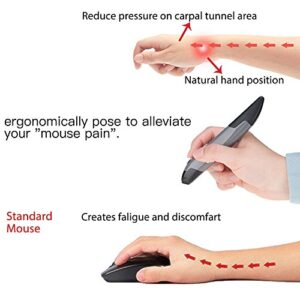
Before you spend money on a new mouse, spend ten minutes mapping where your pain actually is. The location and pattern of your symptoms point clearly to which biomechanical fault is hurting you most, which in turn determines which type of ergonomic mouse will help.
Pain or tingling in the thumb, index, middle, and half the ring finger — especially at night — points to carpal tunnel involvement. Driver: wrist extension and direct pressure on the carpal tunnel. The intervention with the highest leverage is keeping your wrist neutral, which is the central job of a vertical mouse.
Sharp pain on the thumb side of the wrist, worse with thumb movement points to De Quervain’s tendinitis. Driver: ulnar deviation plus repetitive thumb work. Move the mouse closer to your body’s centerline, eliminate the number pad on your keyboard if possible, and consider a mouse design that reduces thumb effort — a trackball where the ball is controlled by fingers rather than thumb is often a strong choice.
Dull ache in the forearm or elbow that builds through the day points to forearm tendinitis driven by static grip tension. The intervention is reducing the muscular effort required to hold and move the mouse. A trackball requires no gripping. A lighter mouse reduces the effort to move it. A larger mouse with broader palm contact distributes weight across more muscle fibers instead of concentrating it.
Tingling in the ring and little fingers, or pain on the inside of the elbow, is cubital tunnel — your ulnar nerve, not your mouse. Don’t buy a new mouse for this; raise your chair armrests so your elbow doesn’t rest on hard surfaces, and see a physical therapist if it doesn’t resolve within a couple of weeks.
Pain that’s diffuse, generalized, and worse during stressful weeks is often muscle fatigue compounded by stress, not a specific nerve or tendon issue. An ergonomic mouse will still help, but the bigger interventions are workload pacing, breaks, and sleep. Don’t expect a $120 mouse to solve a 60-hour workweek problem.
If your symptoms include weakness (dropping objects, difficulty turning a key), constant numbness that doesn’t come and go, or pain severe enough to wake you up multiple nights in a row, stop self-diagnosing and see a hand specialist. Ergonomic equipment helps prevent and treat mild-to-moderate cases. Severe cases need professional evaluation.
The Four Categories of Ergonomic Mice
There is no monolithic “ergonomic mouse.” There are four distinct design philosophies, each addressing a different combination of the four biomechanical faults. Understanding the categories first before you look at any specific products which saves you from buying the wrong tool for your problem.
Category 1: Vertical Mice
A vertical mouse rotates the entire device roughly 50 to 90 degrees so that you grip it like you would shake someone’s hand. Your thumb points up, your pinky points down, and your forearm bones sit parallel to each other in their natural neutral position rather than crossed.
What it solves: forearm pronation, primarily. Most vertical mice also reduce wrist extension because the design encourages a straighter wrist line.
Tilt angle matters and varies by model. A 57-degree mouse like the Logitech MX Vertical reduces pronation significantly while keeping a learning curve manageable. A near-90-degree mouse like the Evoluent VerticalMouse 4 maximizes pronation reduction but has a steeper adjustment period and feels strange for many users for the first week.
Best for: people whose primary issue is forearm aching or carpal tunnel symptoms driven by pronation. Not ideal for: gamers requiring fast precise micro-movements, or people with wrist sprains where vertical pressure on the pinky-side of the hand is uncomfortable.
Category 2: Trackball Mice
A trackball stays stationary on the desk. You move the cursor by rolling a ball with your thumb, your fingers, or your palm depending on the design. Your hand and wrist barely move at all.
What it solves: nearly everything related to mouse movement, because there isn’t any. Eliminates ulnar deviation (you don’t reach for the mouse), reduces forearm tendinitis (no movement, no static grip required to drag), and reduces overall arm fatigue.
The category splits by which body part controls the ball. Thumb-operated trackballs (Logitech MX Ergo, Logitech M575) keep the hand in a familiar position but put repetitive load on the thumb a problem if you have De Quervain’s. Finger-operated trackballs (Kensington Expert, Kensington Slimblade) use the index and middle fingers on a larger ball, which is gentler for thumb issues but has a steeper learning curve.
Best for: severe RSI, limited desk space, people who can’t tolerate any wrist movement, anyone with forearm tendinitis. Not ideal for: gaming, detailed graphic design work that requires fast pixel-level cursor flicks, anyone with arthritis in the fingers (the rolling motion can aggravate finger joints).
Category 3: Contoured Ergonomic Mice (Horizontal)
These look like traditional mice from a distance but with sculpted shapes designed to support a more relaxed grip. Common features include a thumb rest that prevents pinching grip, a higher palm hump that supports the natural arch of the hand, and a slight lateral tilt (typically 10–20 degrees) that reduces but does not eliminate pronation.
What it solves: grip tension and partial pronation, with a much shorter adjustment period than vertical or trackball designs. The Logitech MX Master series is the canonical example.
Best for: people without active severe RSI who want a meaningful comfort upgrade without changing how they mouse, professional users who can’t afford the productivity dip of a learning curve, anyone whose pain is mild and primarily related to grip tension.
Not ideal for: people with significant carpal tunnel or forearm symptoms — the biomechanical correction is real but partial. If a contoured mouse hasn’t fixed your pain after a month, the answer is to go vertical, not to find a different contoured model.
Category 4: Adjustable and Specialty Designs
A small but important fourth category includes mice designed to be configured to your specific hand. The Contour Unimouse adjusts in tilt angle (35° to 70°) and thumb rest position, letting you tune the mouse to your hand and grip rather than adapting to a fixed shape.
Centered pointing devices (the Contour RollerMouse line, Mousetrapper) sit between you and your keyboard, eliminating the reach to the right side entirely and addressing ulnar deviation more directly than any other design.
Best for: people who’ve tried multiple ergonomic mice without finding relief, people with non-standard hand sizes or specific anatomical issues, and anyone whose primary problem is the side-reach to a traditional mouse rather than the grip itself.
The Grip-Style Decision: Palm, Claw, or Fingertip

A factor that gets almost no attention in mouse-buying guides but matters enormously for whether an ergonomic mouse will actually help: your grip style. There are three, and you almost certainly fall into one of them without ever having thought about it.
Palm grip. Your entire hand contacts the mouse — palm on the back hump, fingers laid flat across the buttons. This is the most relaxed grip and the one ergonomists consider ideal for long sessions. Palm grippers do well with larger mice that fill the hand. If you palm-grip and you’re trying ergonomic mice, prioritize models large enough that your palm makes full contact; an undersized mouse forces you into claw grip and undoes the ergonomic benefit.
Claw grip. Your palm rests on the back of the mouse but your fingers arch up so only the fingertips touch the buttons. This grip allows fast clicking and is favored by gamers but creates more sustained finger tension. Claw grippers transitioning to ergonomic mice often struggle with vertical designs because the steeper angle changes how the fingers approach the buttons. A contoured ergonomic with a defined finger groove tends to be a more successful starting point.
Fingertip grip. Only your fingertips touch the mouse — the palm doesn’t make contact at all. This grip is the worst for sustained ergonomic load because all the static muscle effort is concentrated in the small intrinsic muscles of the hand.
Also, fingertip grippers are also the hardest to fit because most ergonomic mice are designed around palm contact. If you fingertip grip and you have wrist or hand pain, the highest-value intervention is often switching to a trackball that eliminates the grip entirely, or to an adjustable mouse you can tune to your hand.
Before you spend money, watch your hand for ten minutes while you work. Note which grip you’re using. Then read the product descriptions of any mouse you’re considering specifically for grip-style fit.
Choosing the Right Ergonomic Mouse for Wrist Pain: A Decision Framework
Now we put the pieces together. Below is the decision framework I’d use if you were sitting across from me describing your situation.
If your primary symptom is forearm or elbow ache: start with a vertical mouse at 57°. The MX Vertical is the most-recommended starting point for a reason — the angle is aggressive enough to make a measurable difference without being so steep that adjustment fails. Budget two weeks for the transition.
If your primary symptom is carpal-tunnel-pattern tingling in the thumb-side fingers: go vertical, and pair it with reducing wrist extension by raising your chair so your elbows are at or slightly above desk level. The mouse alone solves about half the problem; the chair height solves the other half.
If your primary symptom is sharp thumb-side wrist pain (De Quervain’s): the mouse change matters less than the position change. Move the mouse to the centerline of your body, ditch any keyboard with a number pad you don’t actually use, and avoid thumb-controlled trackballs (the MX Ergo and M575 will make this worse). A finger-controlled trackball or a vertical mouse with a thumb rest that supports rather than works the thumb is the right direction.
If your primary symptom is generalized hand fatigue and grip tension: a trackball is the strongest play because it eliminates the gripping requirement entirely. The Kensington Expert is the standard recommendation — large ball, ambidextrous, and the four-way scroll ring removes the wrist movement of scrolling.
If you have mild discomfort and don’t want a learning curve: contoured ergonomic horizontal. The MX Master 3S is the consensus pick. The improvement over a stock mouse is real even though it’s not dramatic. If a month in you still hurt, that’s your signal to go vertical or trackball — don’t spend a year iterating on contoured models.
If you’ve tried two or three ergonomic mice and none have worked: stop buying off-the-shelf and look at adjustable designs. The Contour Unimouse lets you tune the angle and thumb rest to your hand. The RollerMouse line eliminates the side-reach problem entirely. These cost more but they exist because the standard one-size designs don’t fit some hands.
If you game competitively and also have wrist pain: the honest answer is that you need two mice — a vertical or trackball for the workday and a lightweight gaming mouse for play sessions. Asking a single mouse to be both is how people end up frustrated.
Recent vertical gaming mice (Razer Pro Click V2, Keychron M5) have closed the performance gap considerably, but a 47° vertical is still a compromise compared to a 100g optical gaming mouse for FPS performance.
If you’re left-handed: the options narrow considerably. The Logitech Lift comes in a left-handed version and is the cleanest option for most people. Trackballs are mostly ambidextrous (Kensington Expert, Kensington Orbit) and are a strong play for left-handers because the lack of handedness in the design means no compromise. Avoid right-handed-only vertical mice; the geometry doesn’t work mirrored.
Specific Models Worth Your Attention in Each Category
This isn’t a ranked roundup — it’s a short list of the models that come up most in clinical and reviewer recommendations across the full SERP, with a one-line note on who each one is for.
Logitech MX Vertical (57° vertical): The default recommendation for most people with mouse-related wrist pain. Right-handed only. About four months of battery life per charge.
Logitech Lift (57° vertical, smaller): The MX Vertical’s smaller sibling, available in a left-handed version. The right answer for small hands and the only mainstream option for left-handed users who want a vertical.
Evoluent VerticalMouse 4: Near-90° tilt for maximum pronation correction. The mouse for people whose vertical mice “didn’t work” because the angle wasn’t aggressive enough. Steeper learning curve than the MX Vertical.
Logitech MX Master 3S (contoured horizontal): The reference contoured ergonomic. Excellent scroll wheel, multi-device support, sculpted shape that reduces grip tension without changing how you mouse. The best “low-friction upgrade” choice.
Logitech MX Ergo (thumb trackball): A thumb-operated trackball with an adjustable tilt. Solid choice for people who want the trackball benefit but don’t want to retrain their cursor control from scratch. Not appropriate if you have any thumb-side wrist pain.
Kensington Expert Mouse (finger trackball): Large ball controlled by fingers, four-way scroll ring, ambidextrous. The standard recommendation for severe RSI cases, and the one most physical therapists name when asked. Two-to-four week learning curve, then a permanent solution.
Kensington Slimblade Pro (finger trackball): A flatter alternative to the Expert with similar finger-controlled operation. Worth considering if the Expert’s height feels too tall for your desk.
Contour Unimouse (adjustable): The mouse for people who couldn’t find a fit in standard products. Tilt adjusts from 35° to 70°, thumb rest position adjusts independently. Higher price reflects the engineering, not the brand.
Contour RollerMouse Red / Pro / Mobile (centered): Sits between you and your keyboard. Eliminates the side-reach to a traditional mouse position entirely. The right answer if your specific problem is shoulder and outer-elbow pain from reaching, rather than wrist pain from gripping.
I haven’t named gaming-specific picks because the gaming-mouse-with-ergonomic-benefits market changes faster than this guide can stay current. If you need both, the current strongest options as of this writing are the Razer Pro Click V2 Vertical and the Keychron M5 — but check current reviews before buying.
The Transition Period: What the First 14 Days Actually Feel Like
The single most common reason ergonomic mice fail isn’t that the mouse is wrong. It’s that the user gives up during the adjustment period. Knowing what to expect — and what to do about it — is the difference between solving your wrist pain and joining the population of people with three unused ergonomic mice in a desk drawer. Every ergonomic mouse wrist pain guide worth reading will tell you the same thing: the transition period is the real test.
Days 1–3. Cursor control feels imprecise. You’ll overshoot targets, miss small click areas, and feel about 60% as fast as you were before. This is normal. Your motor cortex has years of practice with the old grip and is rebuilding the muscle pattern.
Don’t change DPI settings yet, don’t switch back to the old mouse for important tasks, and don’t make any judgment about whether the new mouse is working. You’re not in a position to evaluate it.
Days 4–7. Speed comes back. By the end of week one most users report 80–90% of their previous speed and a noticeable reduction in wrist tension during long work sessions. This is when the new mouse starts to feel possible rather than impossible.
New muscles you didn’t know you had may feel slightly fatigued and this is expected. Different muscles are working now, and they’re getting their first real workload.
Days 8–14. Adaptation completes for most people. Cursor speed returns to baseline or exceeds it. The biomechanical change becomes invisible as you stop noticing the mouse and just work. This is also when the wrist pain assessment becomes meaningful.
If your symptoms have noticeably reduced by day 14, you have the right mouse and you’re on the right track. If symptoms haven’t reduced at all, the mouse may not be the right match for your specific issue, and you need to revisit the diagnosis section.
Trackballs run longer. A trackball typically takes 3–4 weeks to reach full adaptation, not 2. The motor pattern is more different from a traditional mouse than a vertical is. Plan accordingly and don’t judge the trackball at the two-week mark.
Adjustable models need a tuning period. The Unimouse and similar products require you to actually experiment with the angle and thumb rest. Set it once, work for two days, adjust once, work for two more days. Most users find their setting within a week and stop adjusting.
A practical rule for the transition: keep your old mouse on the desk but don’t use it. Having it as a fallback prevents panic during the first three days, but using it resets the motor learning. After two weeks, put the old mouse in a drawer.
Workstation Setup That Makes the Mouse Work
A new ergonomic mouse on a poorly configured workstation will give you maybe a third of its potential benefit. The mouse is one variable in a system, and the system has to be right for the variable to matter. This ergonomic mouse wrist pain guide treats the workstation as inseparable from the mouse — because it is. Five workstation factors do the most.
Chair height. Adjust your chair so your elbows sit at the same level as the top of your desk, with your forearms parallel to the floor. If your shoulders shrug up to reach the desk, the chair is too low; if your wrists bend down to reach the keyboard, the chair is too high. This single adjustment eliminates wrist extension, which is one of the four biomechanical faults the mouse is trying to fix.
Mouse position. The mouse should sit close to your body, immediately to the side of the keyboard, not far out to the right. The reach itself causes ulnar deviation regardless of mouse design. If you have a number pad on your keyboard you don’t actively use, switch to a tenkeyless keyboard — the mouse moves three to four inches closer to centerline immediately.
Monitor height. Top of the screen at or just below eye level, monitor about an arm’s length away. This isn’t a wrist issue directly, but a monitor that’s too low causes you to hunch, which rounds the shoulders and changes the angle your forearms hold over the keyboard and mouse. Posture problems propagate down the kinetic chain.
Wrist position. Your wrist should be in a neutral, straight line from your forearm — not bent up, not bent down, not twisted to the side. A wrist rest, used correctly, supports your forearm during pauses but isn’t where you actually rest your wrist during active mousing. Active mousing should happen with the wrist floating, not pressed against a hard surface.
Movement breaks. Every 30 minutes, stand up. This sounds trivial and it isn’t. Static muscle load is the underlying mechanism for most repetitive strain injuries; breaking the static load every half-hour resets the muscle fatigue cycle. Set a timer if you have to. The most ergonomically perfect setup, sat in for four straight hours, will hurt you more than a mediocre setup that you stand and stretch in every thirty minutes.
Stretches and Exercises That Compound the Gains
The mouse and the workstation address the cause. Stretching and strengthening address the existing damage and build resilience for the future. Five exercises cover most of the relevant tissue. Do them once in the morning, once at lunch, and once before you stop work.
Wrist flexor stretch. Extend one arm straight in front of you, palm up. With your other hand, gently pull the fingers of the extended hand back toward your body until you feel a stretch on the underside of the forearm. Hold for 20–30 seconds. Switch sides.
Wrist extensor stretch. Same setup, palm down. Gently push the fingers of the extended hand down and toward your body until you feel a stretch on the top of the forearm. Hold for 20–30 seconds. Switch sides.
Median nerve glide. Extend your arm to the side at shoulder height with the palm facing forward and fingers pointing up — like a stop signal. Tilt your head away from the extended arm. Hold for 5 seconds, return, repeat 10 times. This mobilizes the median nerve through the carpal tunnel and is one of the most useful exercises for early carpal tunnel symptoms.
Fist-to-fan. Make a tight fist, then slowly spread your fingers wide as far as they go. Repeat 10 times per hand. Improves circulation to the small muscles of the hand and reduces grip-related fatigue.
Wrist circles. Slowly rotate your wrists in circles, ten in each direction. Done with intention — slow, controlled, full range — this restores joint mobility that mousing depletes.
For people with active mild-to-moderate symptoms, adding a daily session of grip strengthening with a soft therapy ball builds resilience in the forearm muscles. The goal isn’t a tight grip; it’s slow, controlled squeezes for 10–15 reps, which rebuilds endurance in the muscles that mousing fatigues.
These exercises are cumulative. Doing them three times in one day produces almost no measurable benefit. Doing them three times a day for a month produces a significant one.
When to See a Professional
An ergonomic mouse is a preventive and rehabilitative tool. It is not a medical treatment. There are situations where the right move is to stop self-managing and see a professional.
See a hand specialist or a physical therapist who treats upper-extremity injuries if any of the following apply:
- Constant numbness that doesn’t resolve when you change position or rest. The intermittent numbness that comes and goes is mild nerve compression; constant numbness suggests more significant compression that needs evaluation.
- Weakness in the hand. Difficulty turning a key, dropping objects, or losing pinch strength is a sign that nerve compression has progressed beyond the mild stage. Don’t wait on this one.
- Pain severe enough to wake you up multiple nights in a row. Carpal tunnel symptoms are often worse at night because of how people sleep with their wrists flexed. If a wrist splint at night doesn’t resolve it within a week, get evaluated.
- Symptoms that have been present for more than three months without improvement despite ergonomic changes. Three months is the rough threshold where mild RSI becomes chronic, and chronic injuries have a different treatment trajectory than acute ones. Earlier intervention produces better outcomes.
- Pain that radiates from the neck or shoulder into the arm. This is often a cervical spine issue presenting as mouse-arm symptoms. The mouse won’t fix it.
In the United States, you typically don’t need a physician referral to see a physical therapist. Direct access laws exist in most states for an initial evaluation, which means you can call a PT clinic directly. For diagnostic imaging or surgical consultation, you’ll need to start with a primary care doctor or hand specialist.
A physical therapist who specializes in occupational injuries will evaluate your full posture chain — neck, shoulder, elbow, wrist — and identify whether your symptoms are coming from where you think they are. Many people with “mouse arm” actually have neck issues or shoulder impingement driving the symptoms downstream. The mouse change is still useful, but it isn’t the primary treatment in those cases.
Frequently Asked Questions
How long before an ergonomic mouse stops my wrist pain?
Mild symptoms typically reduce noticeably within 2–3 weeks of switching, assuming the workstation is also set up correctly and you’re taking movement breaks. Moderate symptoms — pain that’s been present for months — typically take 6–12 weeks of consistent ergonomic change plus stretching to resolve. Severe symptoms need professional evaluation; the mouse contributes but isn’t the whole solution.
Is a vertical mouse better than a trackball?
For most people with mild-to-moderate wrist pain, a vertical mouse is the better starting point because the learning curve is shorter and the cursor control feels more familiar. For severe RSI, limited desk space, or people who’ve tried vertical mice without sufficient relief, a trackball is often the stronger play. They solve different parts of the problem; neither is universally better.
Will an ergonomic mouse help if I already have carpal tunnel syndrome?
In mild and moderate cases, yes — significantly. Reducing wrist extension and forearm pronation reduces pressure on the median nerve, which reduces inflammation, which gradually relieves symptoms. In severe cases (constant numbness, weakness, or symptoms severe enough to need surgical evaluation), the mouse is supportive care; the medical condition needs medical treatment.
Do I need to spend $100+ on an ergonomic mouse?
No. Sub-$30 vertical mice from brands like Anker, Jelly Comb, and TECKNET produce most of the biomechanical benefit of premium models. They have shorter battery life, less precise sensors, and noisier clicks, but the ergonomic improvement is essentially the same. The premium mice are worth the price difference for daily-use comfort and durability, not for the ergonomic effect itself. Try a budget vertical first if cost is a factor.
Can an ergonomic mouse make wrist pain worse?
Occasionally, yes. The wrong-shape mouse for your hand size, a vertical at the wrong angle for your existing flexibility, or a trackball that aggravates an existing thumb tendinitis can all increase pain rather than reduce it. If two weeks into a new mouse your symptoms are worse, not better, that’s the signal to revisit the diagnosis and try a different category — not to push through.
Is a wireless or wired mouse better for ergonomics?
The cable doesn’t matter ergonomically. What matters is whether the cable creates resistance that affects how you move the mouse. A cheap cable that snags reintroduces grip tension. A high-quality braided cable, or any wireless mouse, eliminates the issue. Choose based on whether you mind charging.
What about left-handed users?
The Logitech Lift comes in a left-handed version and is the strongest mainstream option. Trackballs (Kensington Expert, Kensington Orbit) are ambidextrous and are a strong play for left-handers because handedness isn’t a design constraint. Avoid right-handed-only vertical mice — the geometry doesn’t transfer.
Should I use a wrist rest with an ergonomic mouse?
A wrist rest is for the rests between active mousing, not during. If you’re pressing your wrist into a rest while actively moving the mouse, you’re transferring pressure to the carpal tunnel — the opposite of what you want. Use the rest during pauses; mouse with the wrist floating.
How does grip style affect my mouse choice?
Palm grippers do best with mice large enough to fill the hand. Claw grippers often struggle with steep vertical mice because the angle changes how fingers approach the buttons; contoured ergonomic mice with defined finger grooves are usually a better starting point.
Fingertip grippers have the hardest fit because most ergonomic mice are designed around palm contact — for fingertip grippers with pain, a trackball that eliminates the grip entirely is often the best answer.
Can I prevent RSI before it starts?
Yes, and it’s the highest-value play. The cost of preventing mouse-related RSI is roughly the price of a $50 ergonomic mouse and ten minutes a day of stretching. The cost of treating chronic RSI runs into hundreds of dollars in physical therapy and, in severe cases, thousands in surgical costs and weeks of lost work. If you spend more than four hours a day on a mouse, treat ergonomic equipment as preventive medicine, not a response to existing pain.
Conclusion
Wrist pain from mouse use is solvable for most people. The core takeaway of this ergonomic mouse wrist pain guide: the solution is rarely just buying a different mouse as it’s matching the mouse type to the specific biomechanical fault causing your pain, configuring the workstation so the mouse can do its job, building in movement breaks, and giving the new equipment two weeks of patience during the motor-learning transition. Done together, these changes produce noticeable relief in 2–3 weeks for most mild-to-moderate cases.
The single most common mistake is treating the mouse purchase as the whole intervention. The second most common mistake is giving up on a new mouse during the first three days when cursor control feels worse. Avoid both, and you’re more than halfway to the solution.
If your situation is severe or hasn’t responded to ergonomic changes, see a hand specialist or physical therapist. Equipment helps; medical conditions need medical care. The two work best together.